
Helix Org
Helix Org is a system for running AI agents as persistent workers inside an organisation structure, with roles, streams, and managed activation.
Helix Org is a framework for running AI agents as workers inside a structured organisation. Where regular Helix agent apps respond to individual user requests, Helix Org workers are persistent, role-based agents that subscribe to event streams, collaborate with each other, and escalate to human managers when needed.
This is distinct from user organisations, which are shared workspaces for collaboration. Helix Org is an AI-native org chart.
Core concepts
Workers
A worker is a running AI agent with a defined role and identity. The worker model is designed for two kinds:
- AI workers — powered by an LLM, activated by events, execute tasks autonomously.
- Human workers — real people who receive escalations and send instructions. Human workers participate in the same org structure as AI workers: they can hold roles, appear on the org chart, receive DMs from AI workers, and act as managers in the reporting hierarchy.
Workers are hired into roles. A worker's behaviour is governed by three files: role.md (what the worker does), identity.md (how the worker behaves), and agent.md (org-wide policy).
Roles
A role defines a worker's responsibilities, tools, and activation conditions. Roles are version-controlled YAML/Markdown files. An operator edits a role to change what a worker does; the change takes effect on the next activation.
Example roles: Documentation Engineer, QA Analyst, Code Reviewer, Customer Support Agent.
Streams
Streams are typed event channels. Workers subscribe to streams that are relevant to their role and publish to streams when they produce output. Streams decouple producers from consumers: a stream can have many subscribers, and a worker doesn't need to know who is listening.
Stream types:
| Type | Used for |
|---|---|
| GitHub | Push events, PR comments, issue activity |
| Helix events | Org-wide bus for Helix product events — spec-task attention today; project, PR, CI, and membership events later |
| Local | Internal org communication |
| Direct message | 1:1 channel restricted to the reporting graph — a worker can only DM its direct managers or its own direct reports |
| Team | Broadcast to all direct reports |
| Transcript | Per-worker append-only log of each activation turn |
Helix product events flow onto a single org-wide stream — one per org — rather than a separate stream per project. Each event carries its family and type in the message payload (a domain and event_type, plus the project_id it concerns), so one stream serves spec-task attention events today and can carry project-lifecycle, PR, CI, and membership events later without new streams. Workers pick out what they care about by subscribing with a filter on those fields; there are no per-project streams to manage. This stream is created and maintained automatically for each org, so you won't find it in the New Topic UI.
Activations
An activation is a single turn of a worker's work loop. A worker is activated when an event arrives on a subscribed stream, runs its task, and exits. The next event triggers the next activation.
Before each re-activation the system clears the session's conversation history, so every activation starts on a fresh context window. This is intentional: a worker that accumulates its full transcript across many activations will eventually hit the model's context limit and trigger expensive, lossy compaction. Workers persist their durable state to Markdown files in a git branch — not to the chat history — so clearing the conversation discards no real information. The first activation (no prior session yet) skips the clear and opens a fresh session directly.
How Helix Org differs from agent apps
| Agent apps | Helix Org workers | |
|---|---|---|
| Trigger | User sends a message | Event on a subscribed stream |
| Lifecycle | One request → response | One activation per event, indefinitely |
| Coordination | None | Reporting lines, escalation, DMs |
| State | Conversation history | Markdown files committed to git (conversation history is cleared between activations) |
| Identity | System prompt | role.md + identity.md + agent.md |
| Use case | User-facing chatbot | Background process in an org workflow |
Typical Helix Org patterns
Automated documentation — a Documentation Engineer worker subscribes to the main branch push stream. When code changes land, it reads the diff, decides if docs need updating, and opens a PR.
QA analysis — a QA Analyst worker subscribes to CI result streams and DMs the team when a test suite regresses.
Support triage — a Support Triage worker subscribes to a webhook from your support platform, classifies incoming tickets, and routes them to the right team.
Multi-worker pipelines — a Planner worker receives a feature request, breaks it into tasks, and publishes them to a task stream where individual Developer workers pick them up.
Setting up Helix Org
Helix Org is reached from the Org Chart entry at the top of the organisation nav rail (the icon strip on the far left of the sidebar). This entry is alpha-gated — it appears only for accounts that have the helix-org feature flag enabled. From the Helix Org section you can:
- Workers — view running workers; filter the list by role using the dropdown above the table. Hire a new worker with + New Worker: select a Role, choose a Kind (AI agent for a fully automated LLM-backed worker, or Human for a person-in-the-loop), optionally set a Reports to parent worker to place them in the org hierarchy, then confirm. The hired worker starts on its next triggering event.
- Roles — create roles with + New Role and edit existing role specifications. After clicking Create, the UI navigates to the new role's detail page where you can add MCP tools to the role. New roles start with an empty tool set — add the tools this role needs from the detail page before hiring workers into it.
managers returns the workers the caller reports to; reports returns its direct reports. Each result includes the dmStreamId needed to open a direct message. Because dm enforces reporting-graph scope, these tools are the correct way to discover valid DM targets before sending a message.
- Streams — create and monitor event streams
- Org chart — visualise the reporting structure; connect workers with reporting lines and delete connections by hovering over a line
Worker runtime settings (which LLM, which code agent engine) are configured per-worker in Helix Org → Settings.
Project access
Every worker owns a Helix project — the one provisioned for it when it was hired. That project is the worker's default target: a spec-task tool called without a project_id acts on the worker's own project, and access to it is never in question.
A worker can also act on other projects in the same organisation, but only ones you have explicitly granted. Grants are per-worker: open the worker's detail page and use Project access to pick projects from the organisation. The worker's own project always appears in that list, marked (default), and cannot be removed. Everything else is opt-in — a newly hired worker can reach its own project and nothing more.
Grants are enforced in the server rather than in the worker's instructions, so a worker cannot widen its own reach by guessing a project id:
| Tool | Behaviour outside the granted set |
|---|---|
list_projects | Returns only the worker's own project plus its granted projects — not every project in the organisation |
get_project | Returns an error for any project that was not granted |
Spec-task tools (list_spectasks, get_spectask, approve_spectask_spec, create_spectask_prs, and the rest) | Reject a project_id the worker was not granted |
Two boundaries hold independently of grants. A project in another organisation is refused by a separate check, so no grant or guessed id lets a worker reach another tenant. And every cross-project change is attributed to the human who hired the worker, so a mutation always traces back to a real Helix user.
To watch what a worker is doing, select it on the org chart and switch its side panel to Tasks — the spec tasks in that worker's own project, filterable by status. The events that drive this work arrive on the org-wide Helix events stream described under Streams; there are no per-project topics to subscribe to.
Worker credentials
Workers that run git, gh, or authenticated API calls need a GitHub token. Tokens are not pre-loaded into the container — instead, workers call the mint_credential MCP tool at the start of any authenticated operation and again if they receive a 401 or 403.
mint_credential returns a short-lived token tied to the org's GitHub identity. Add it to any role whose workers need to call git or gh:
mint_credential provider=github
→ { token: "ghs_…", expires_at: "2026-06-11T12:59:00Z" }
The pattern a worker role should follow:
- Call
mint_credentialwithprovider=githubbefore the firstgitorghcommand each activation. - Export the result:
export GH_TOKEN=<token>. - If a command returns 401 or 403, call
mint_credentialagain and re-export — token expiry is expected for long-running work.
This means tokens are always fresh. A single token injected at container start would expire silently after ~1 hour; minting on demand removes that failure mode entirely.
Reading project secrets
A worker's project secrets (API keys, tokens, and other credentials configured for its project) are injected as environment variables when the worker's desktop container boots. But a process's environment is frozen at start: a secret added after the container booted is not in the running shell. To read the current secrets live, a worker calls the list_secrets MCP tool.
list_secrets takes no arguments and returns the worker's own project secrets as a name→value map — scoped to the calling worker's project only, never another's:
list_secrets
→ { secrets: { "DRONE_TOKEN": "…", "NPM_TOKEN": "…" } }
Export the ones you need before the command that uses them, and re-read after adding or changing a secret mid-session:
export DRONE_TOKEN=$(list_secrets | jq -r '.secrets.DRONE_TOKEN')
Like mint_credential, list_secrets is part of the baseline tool set every worker receives — you do not need to add it to a role. It exposes no new access: these are the same secrets the worker already gets as environment variables at boot, just readable on demand rather than only at container start.
Agent skills
Workers run in a sandbox desktop with both an editor and a terminal. Global agent skills — reusable capability packages installed under ~/.agents/skills — are managed from the terminal with the Skills CLI, not with the editor's built-in file tools. The editor raises an interactive filesystem confirmation for that directory, which an unattended worker cannot clear, so the install stalls.
| Action | Command |
|---|---|
| Install | npx --yes skills add <owner/repo> --skill <skill-name> --global --agent zed --yes |
| Update | npx --yes skills update <skill-name> --global --yes |
| List | npx --yes skills list --global --json |
This rule is part of every worker's briefing, so you do not need to restate it in a role.
Workers do not install third-party skills speculatively — a worker installs one only when you ask for it or when the task it has been given requires it. To give the workers in a role a skill by default, name that skill in the role text.
Recovering a stuck worker
Automatic crash recovery
When the worker's agent process crashes, Helix automatically restarts the desktop container without any human action. The system retries up to 3 consecutive times with exponential backoff (15 s, 30 s, 60 s). If the worker completes a successful turn after a restart, the retry count resets.
You do not need to click anything for crash recovery — Helix handles it. The worker will be back online and ready to accept the next event within a minute under normal conditions.
Manual restart
If the worker is hanging rather than crashing — or if automatic recovery has been exhausted — click Restart agent session in the Advanced section at the bottom of the worker detail page.
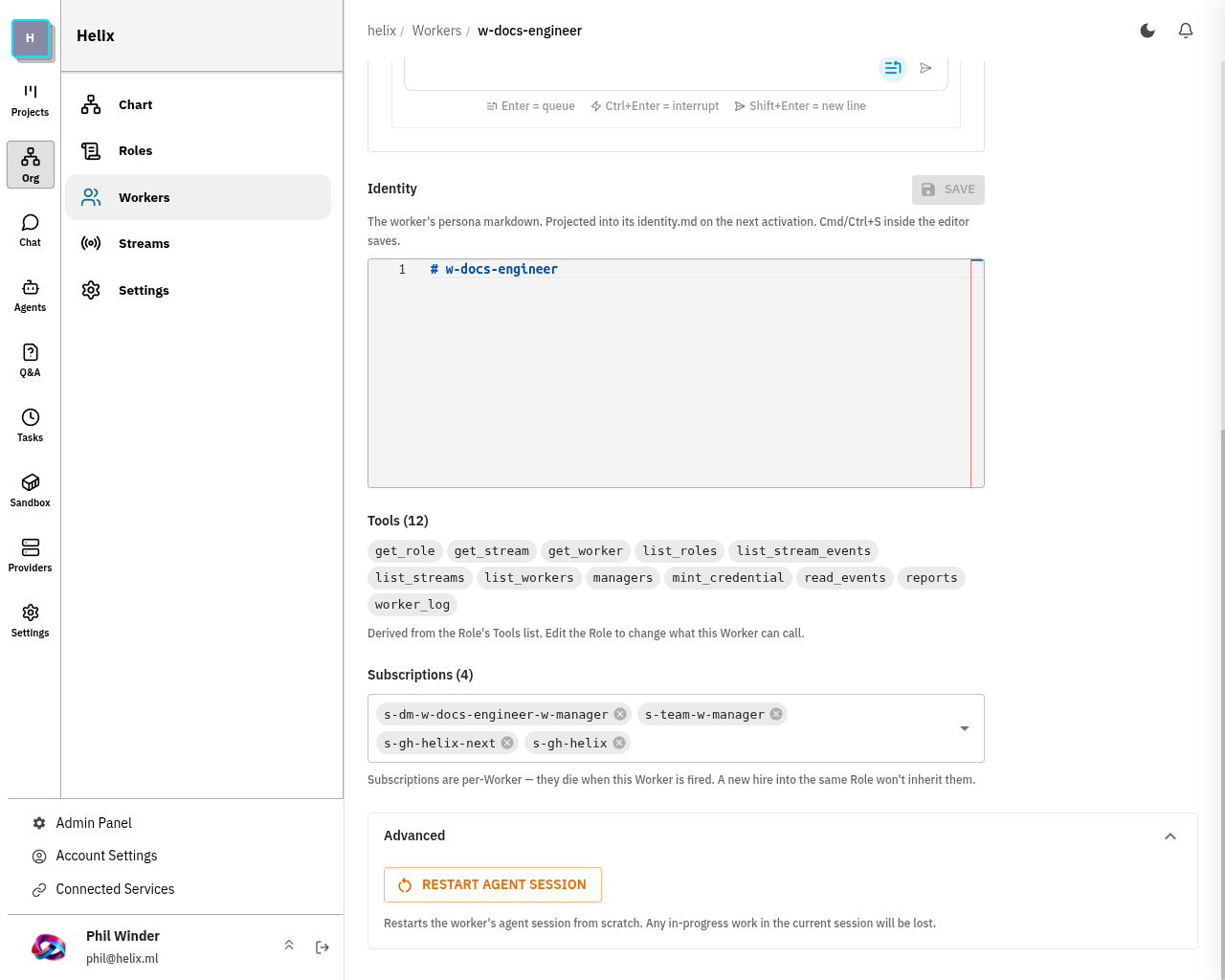
What the restart does:
- Stops the current desktop container.
- Recreates it fresh via the same setup path as a new session — repositories are re-cloned, tools are re-initialised.
- Resets any prompts that were stuck in a crashed state so the worker can accept new events immediately.
Any in-progress work in the current session will be lost. Work the worker has already committed and pushed to a remote branch is safe — only uncommitted local changes inside the container are discarded.
Use manual restart when:
- The worker's video stream shows a frozen or black screen and never recovers.
- A worker activation is stuck — it accepted an event but has been unresponsive for an unusual length of time with no crash logged.
- You see "Still waiting for setup…" and the worker never progresses past that screen.
- The worker has crashed and restarted 3 times in a row without recovering — automatic recovery is exhausted and the worker will not restart again on its own.
State and memory across activations
Workers persist state between activations using a dedicated branch in their per-worker git repository (helix-specs branch). State is written as Markdown files and committed after each activation. This means:
- State survives process restarts and re-deployments
- State is version-controlled and auditable
- Multiple workers can read each other's public state files
The recommended pattern is a state.md file that the worker updates after each meaningful activation, acting as a running log for the worker's future self.
Conversation history is not persistent state. Because the session is cleared before every re-activation, a worker cannot assume that anything said in a previous activation's conversation is still in context. Any decision, finding, or learnt fact that needs to survive across activations must be written to a file and committed to the helix-specs branch before the activation exits. Do not use the chat history as memory.